.png)
Windows App on Meta Quest brings Windows into mixed reality, allowing users to access their local Windows PC and Windows 365 Cloud PC in an immersive workspace. I led the end-to-end design that made remote computing feel intuitive, productive, and native to spatial environments.
Windows in Horizon runs across three apps: one on the PC and two on the headset. Each has a different role and a different set of users. Getting them to feel like one product was a big part of the design work.
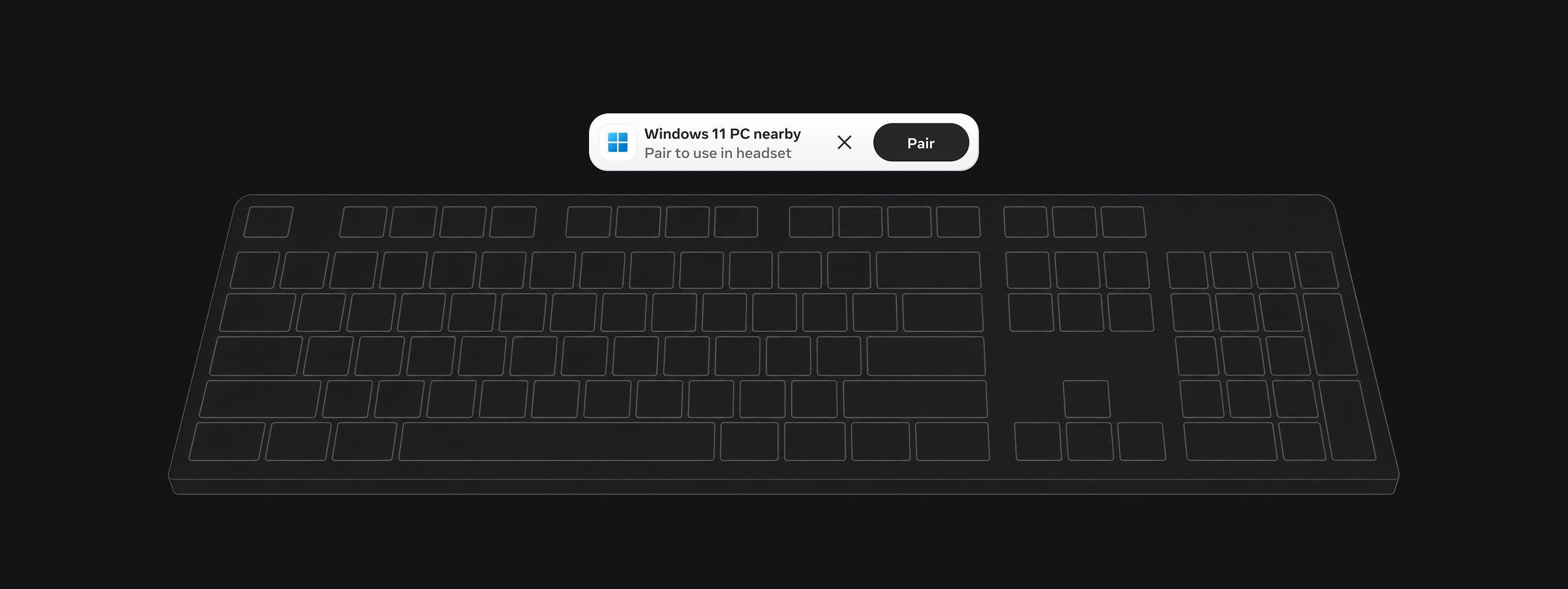
We designed a spatial affordance to invite users into the pairing experience. A small UI appears above a tracked physical keyboard when your PC is nearby and ready to connect. It only shows up when it's actually relevant, never as ambient noise, and it's designed to feel like a natural part of the Horizon OS shell rather than an interruption.
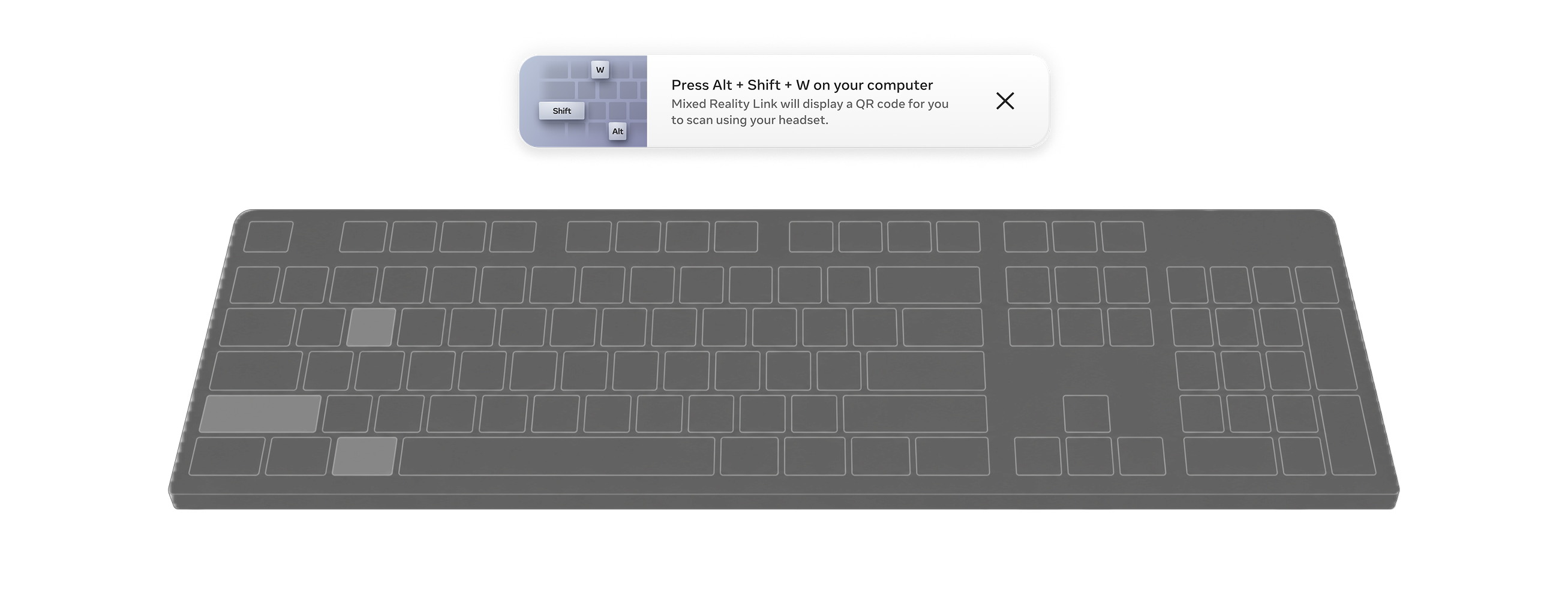
We introduced Alt + Shift + W keyboard shortcut to launch MR Link from inside the headset so users don't have to take it off and navigate their desktop. A small detail that matters a lot when you're in the middle of a session..
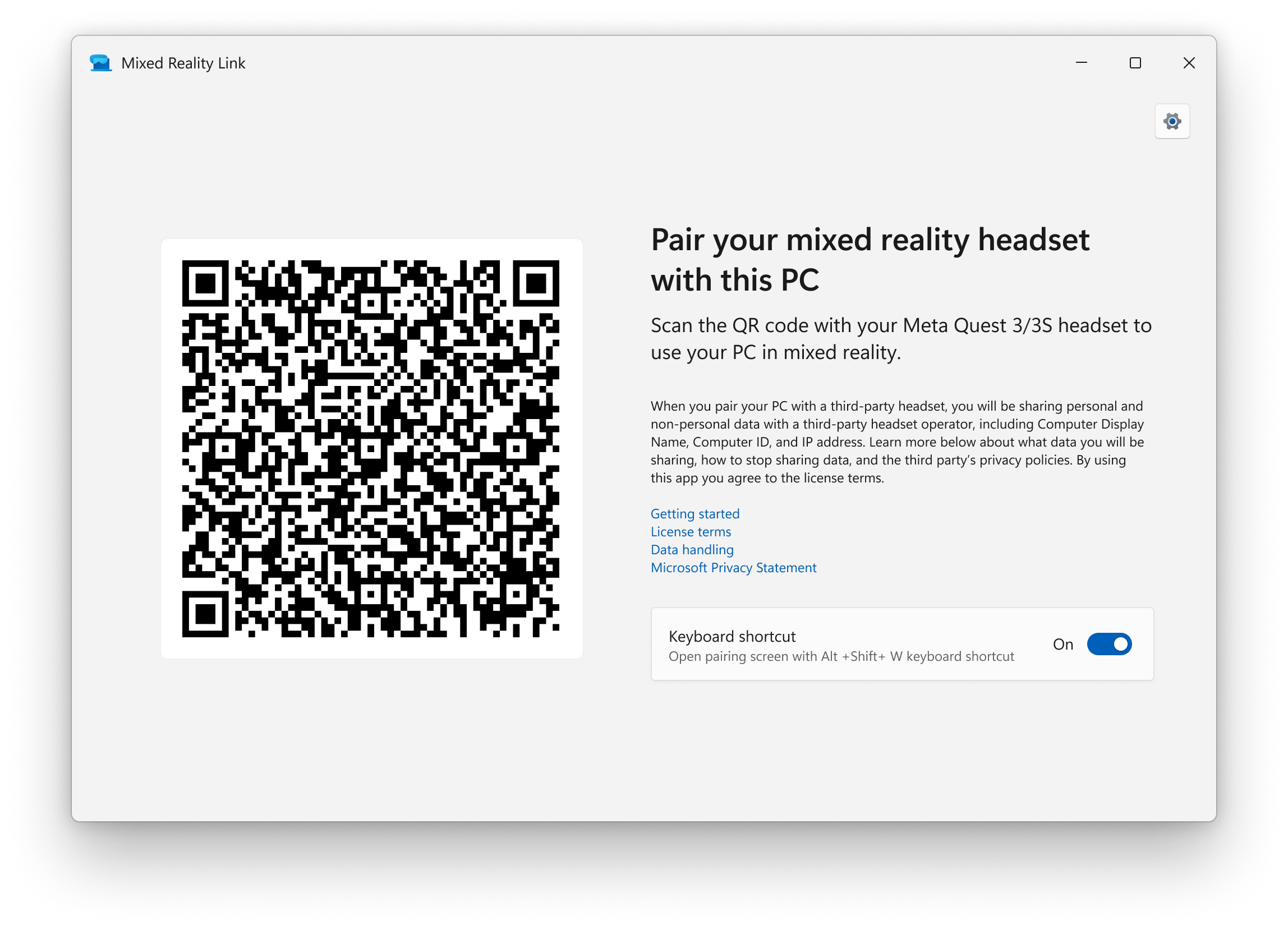
MR Link is primarily a backend app. It handles PC discovery, identity sharing, and hosts the connection. Most users will never open it on purpose. But when it does surface, it needs to feel calm and trustworthy, not technical. It ships preinstalled on Windows 11 devices, so the PC side is ready before the user ever puts on a headset.
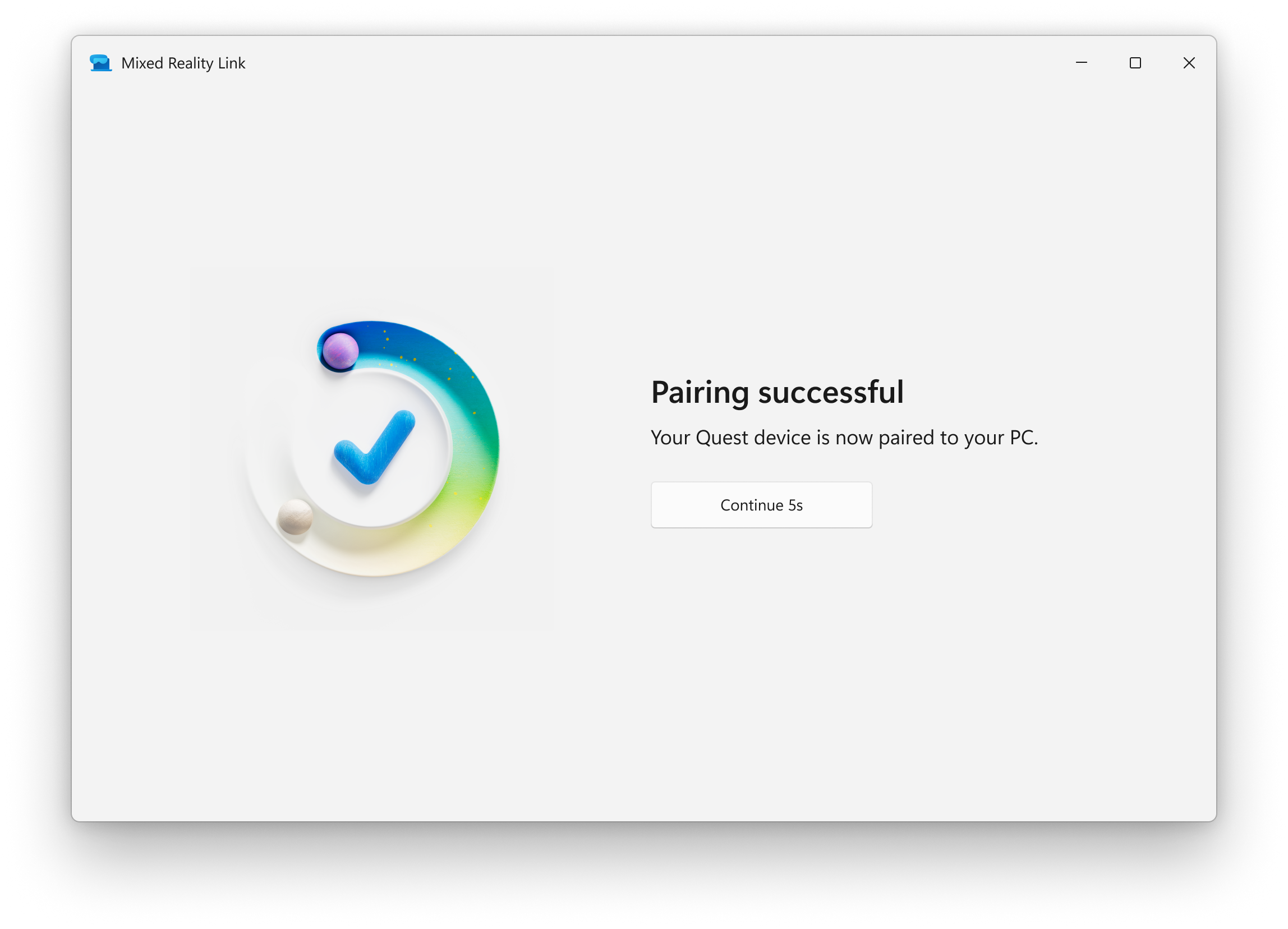
MR Link generates a QR code. Scan it with your Quest headset to start pairing.
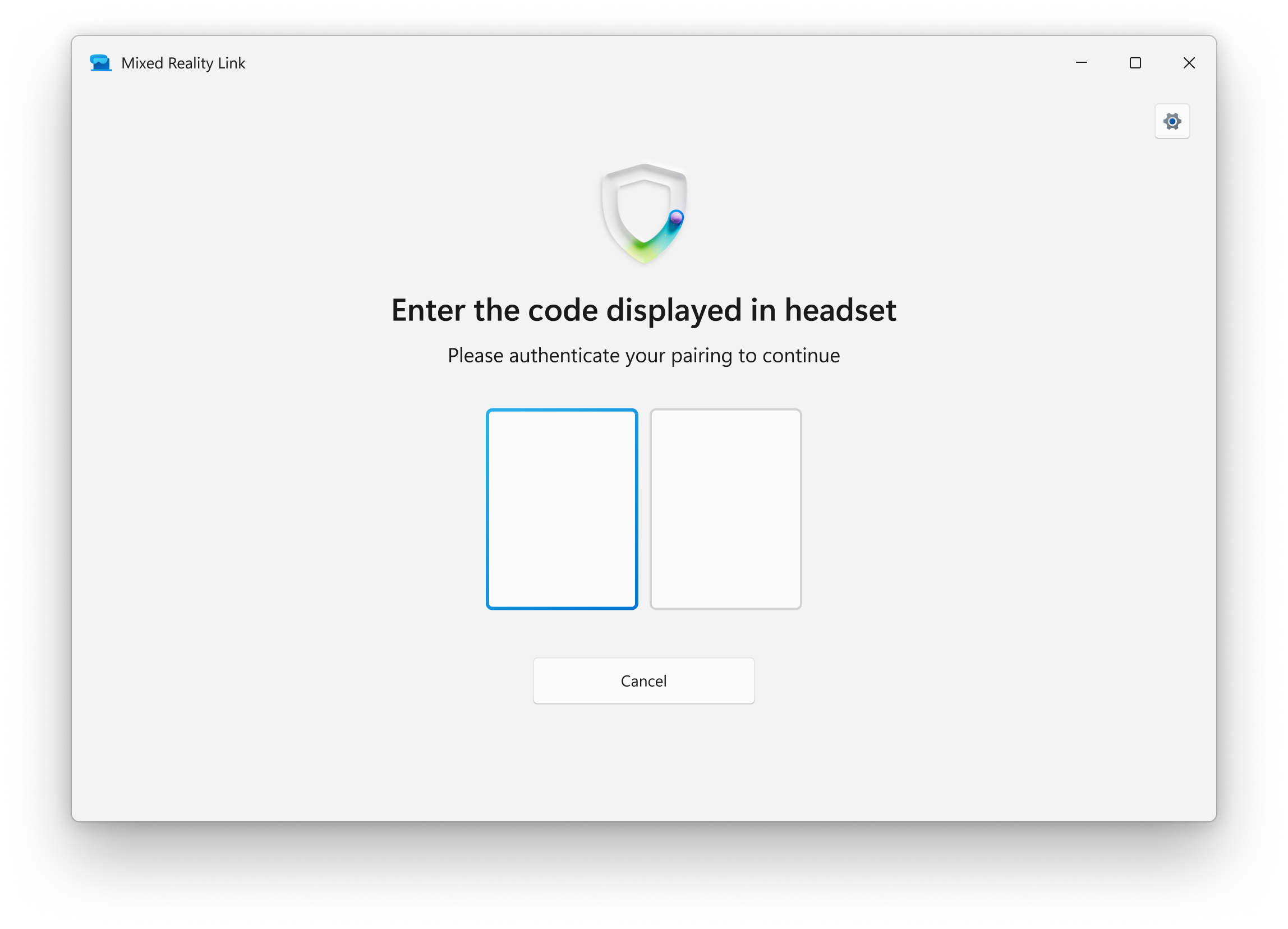
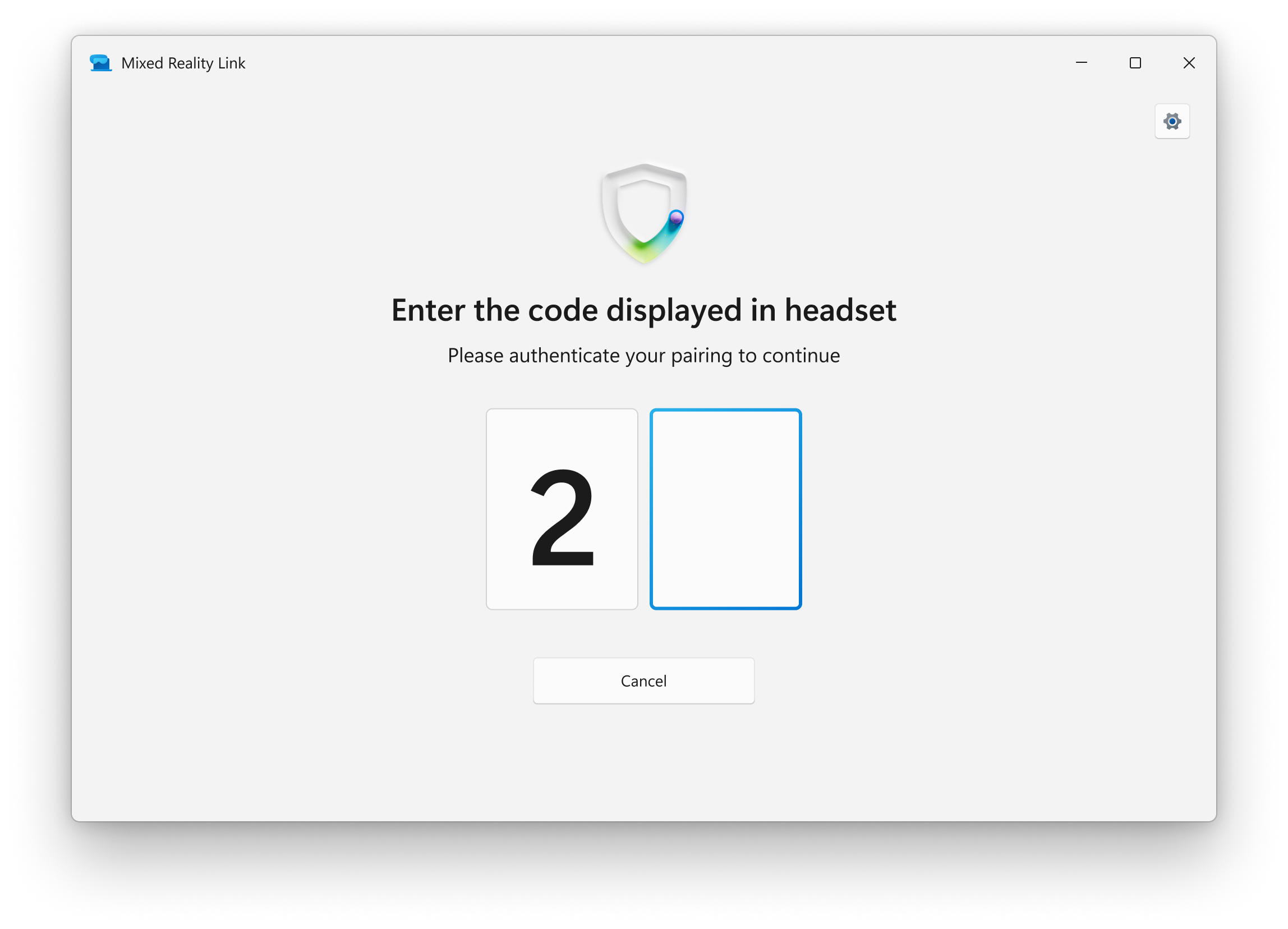
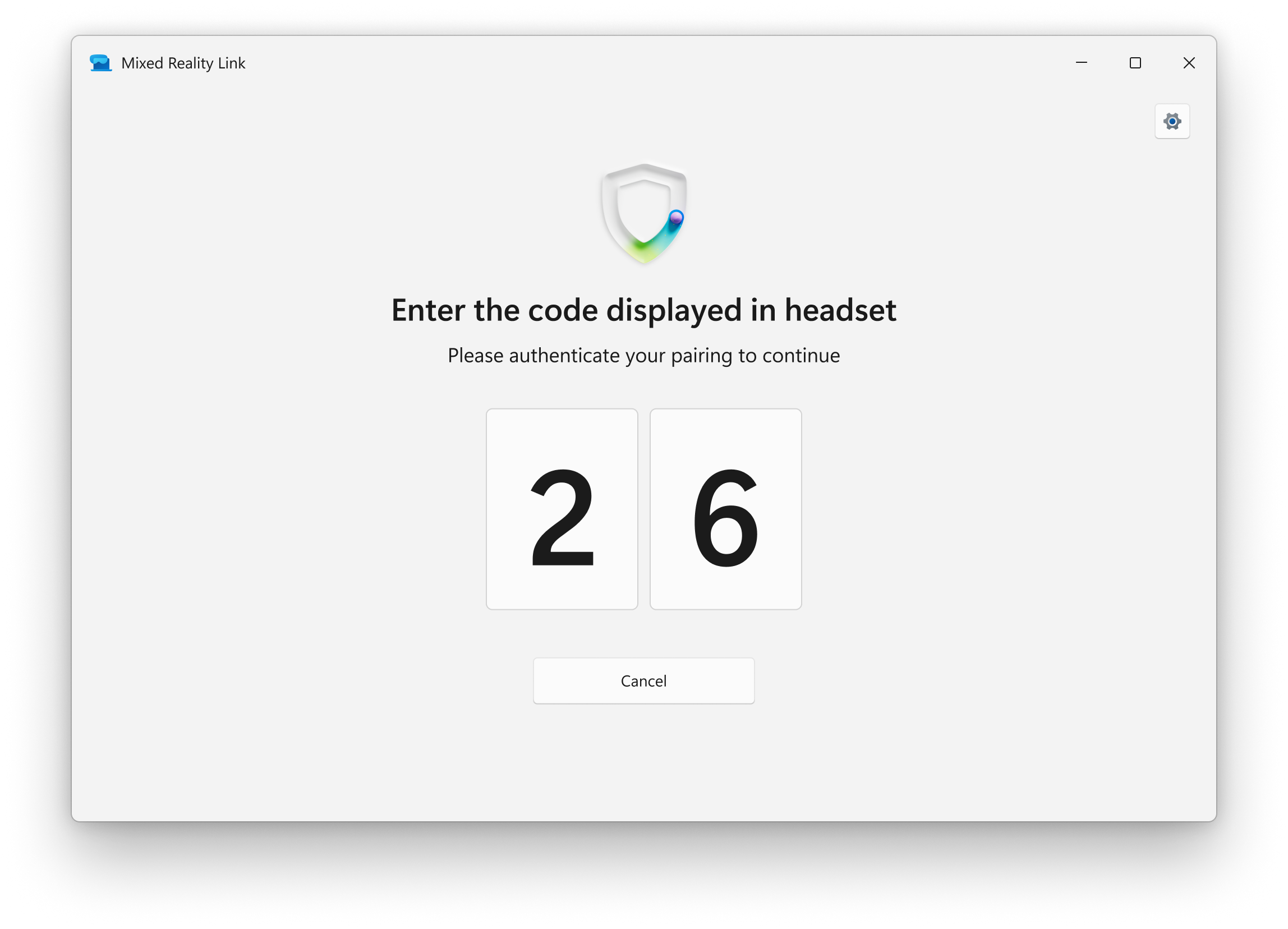
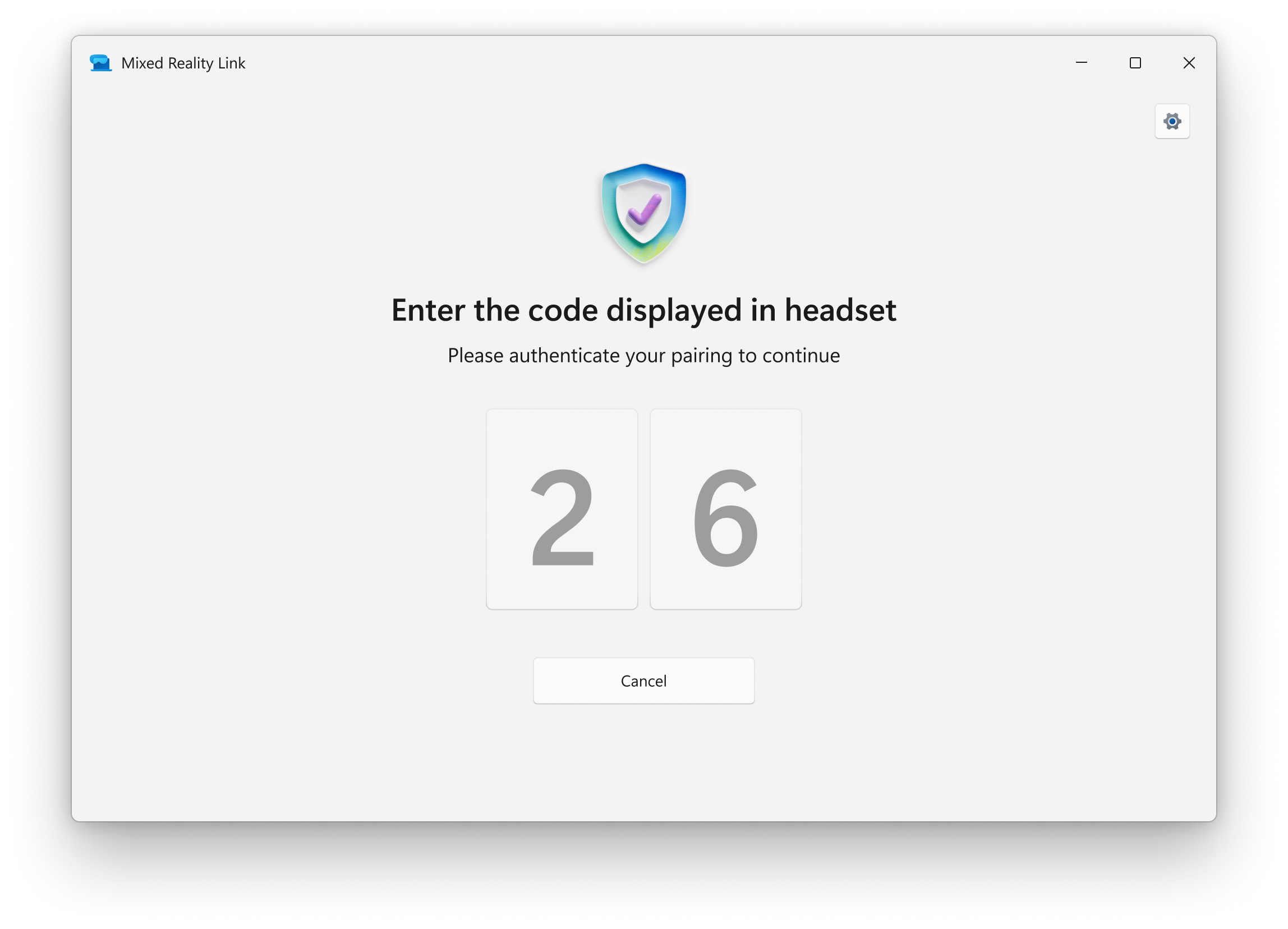
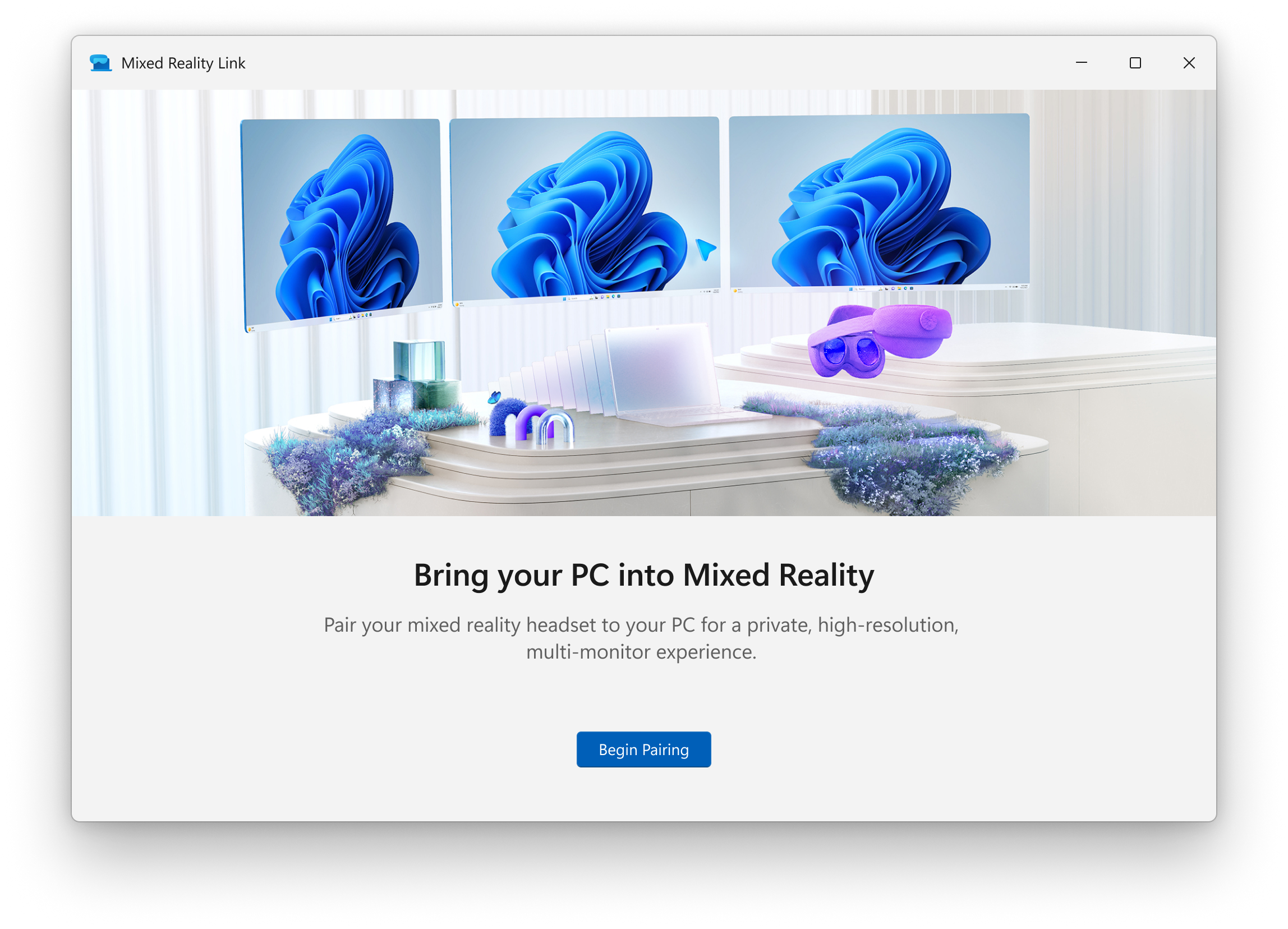
Since MR Link ships preinstalled on Windows 11, many users will stumble across it before they ever own a headset. The first-run experience explains what the app is and whether it's relevant to them, without assuming any prior knowledge of Windows in Horizon.
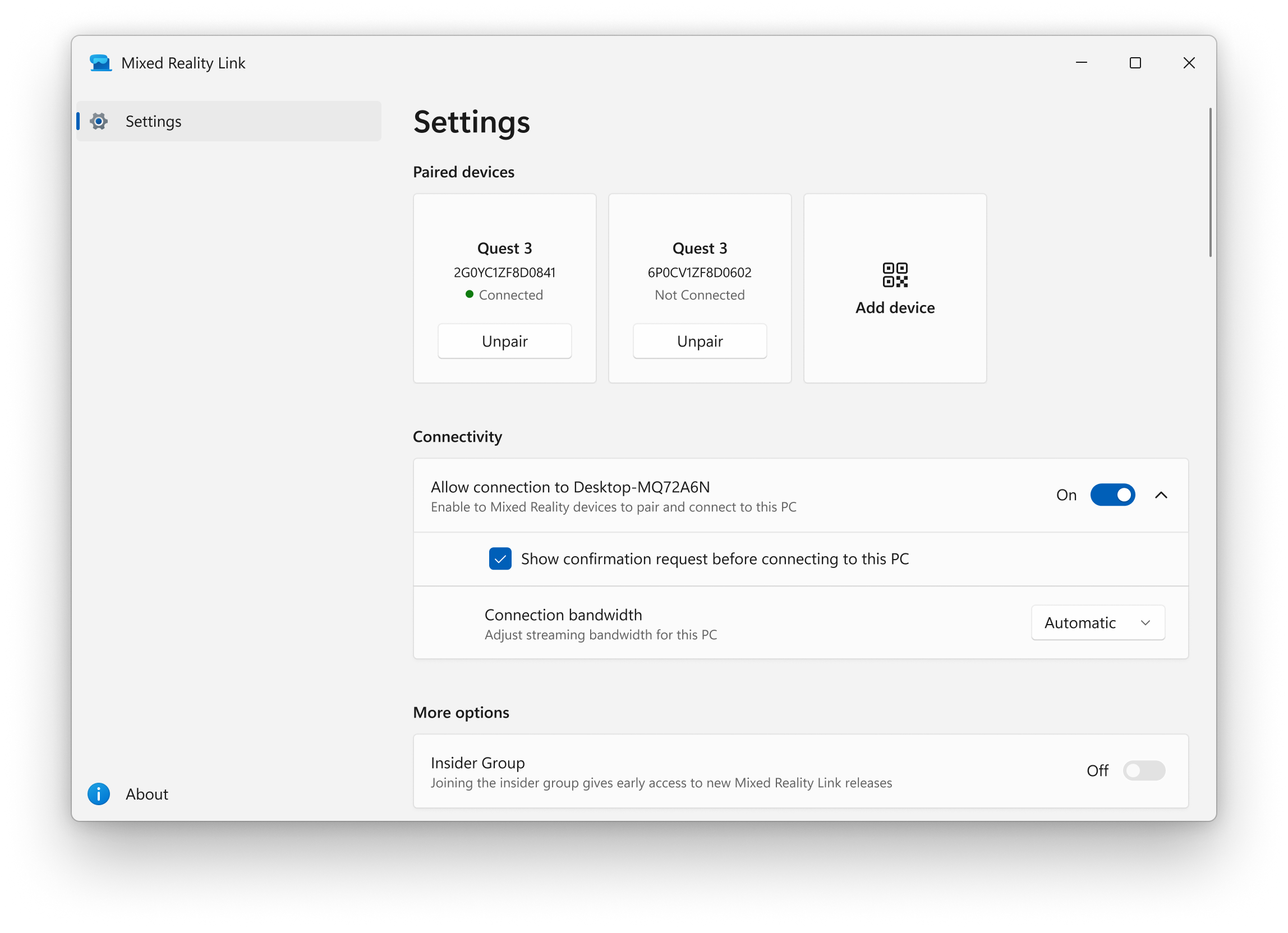
For users who return to manage paired devices, troubleshoot a connection, or unpair a headset, the settings needed to be clear and non-technical. Device management, connection status, and security controls organized around what people actually need to do.
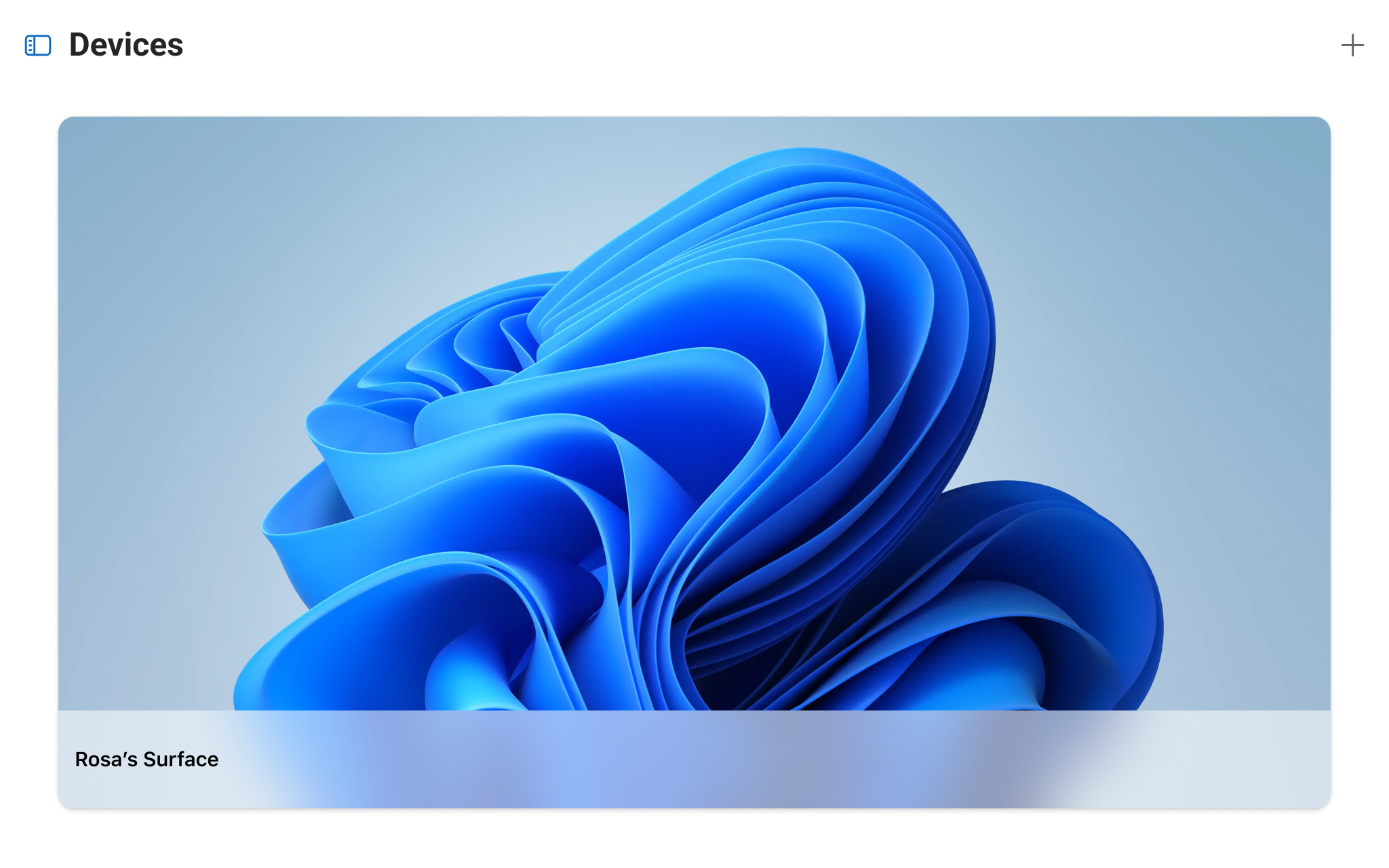
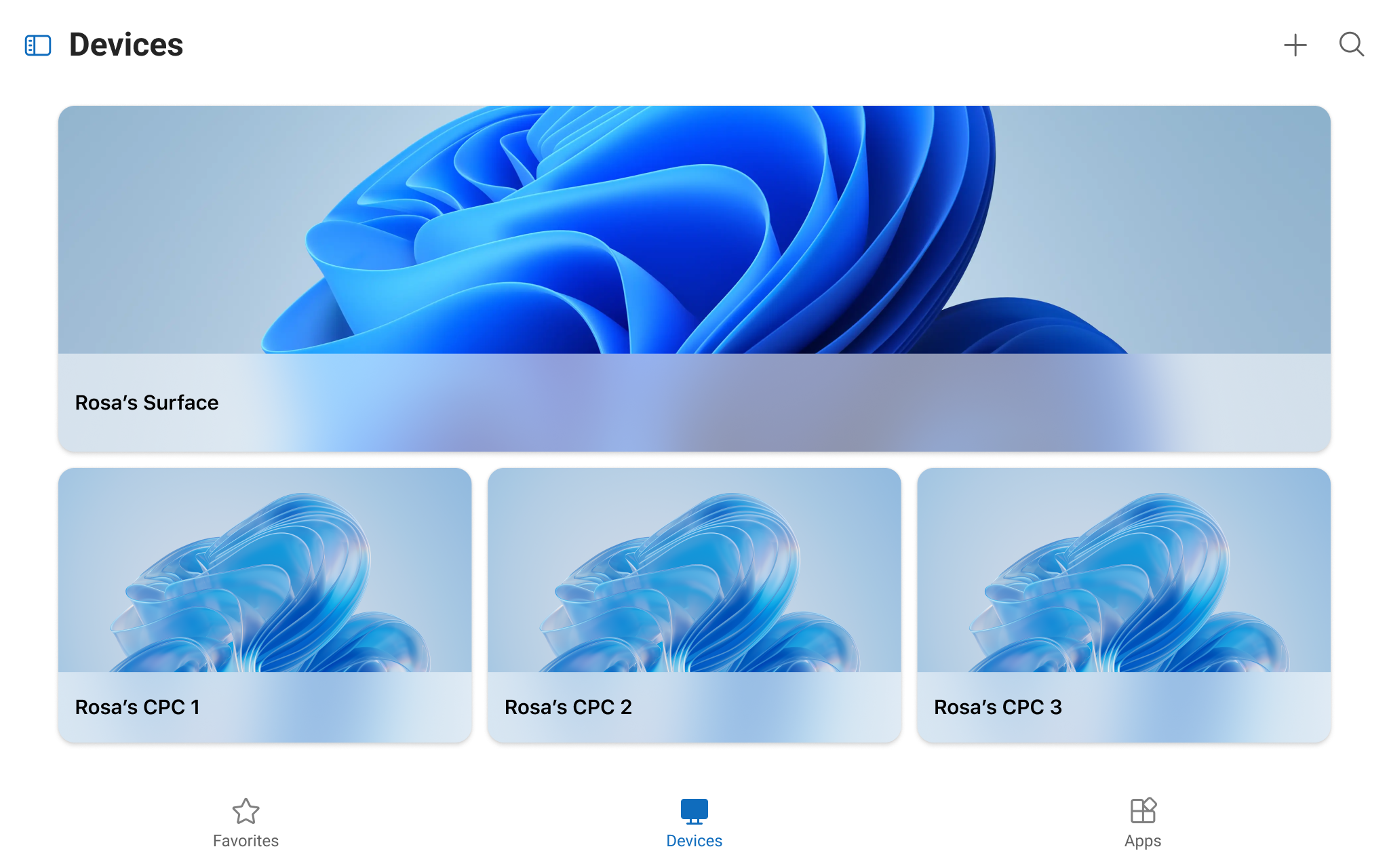
Windows App is primarily an enterprise product, a hub for Windows 365 and cloud PCs used in commercial settings. This was the first time it was redesigned for consumers and for mixed reality. Our users are different. They're not managing fleets of remote machines. They have one or two local PCs they use every day.
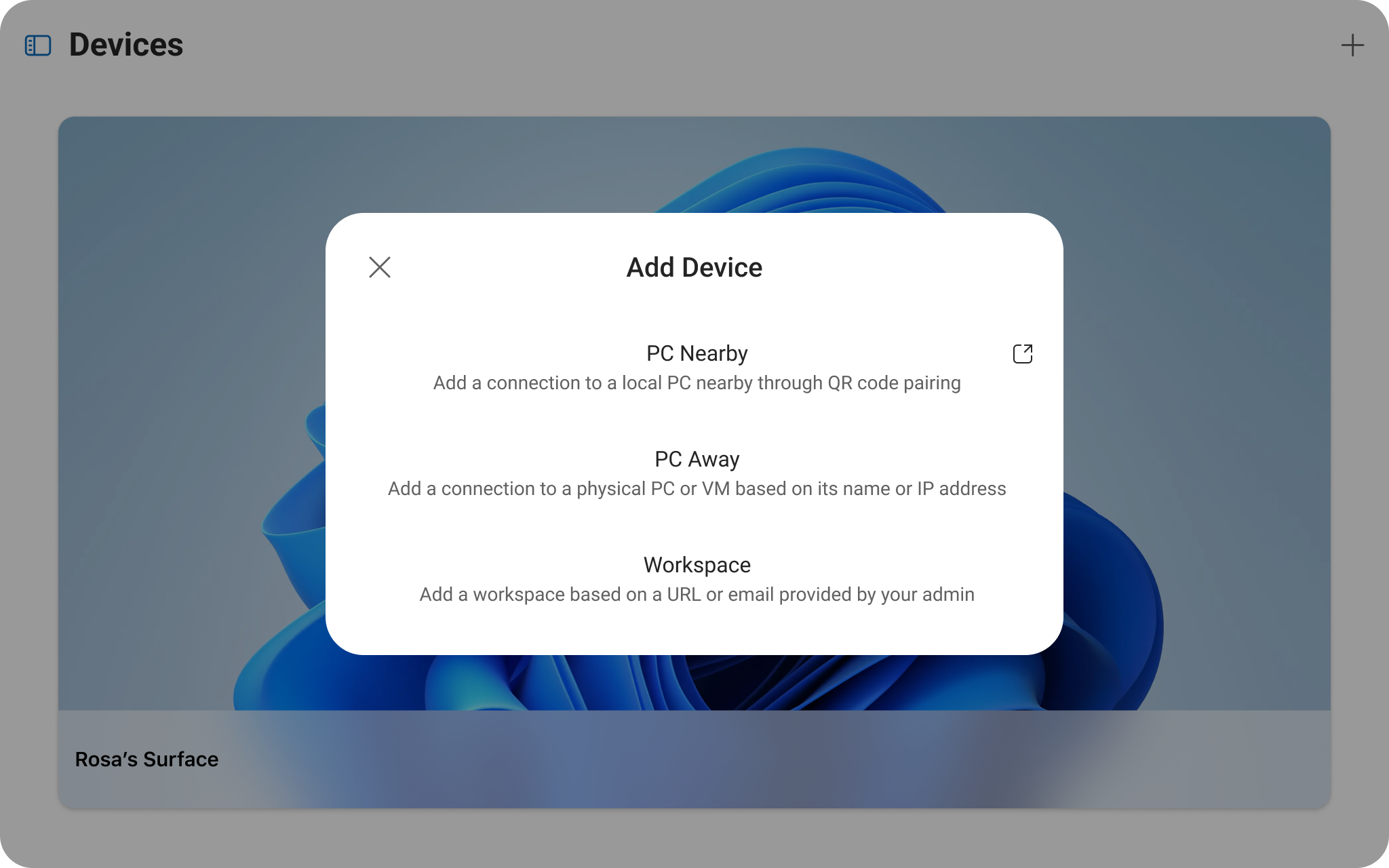
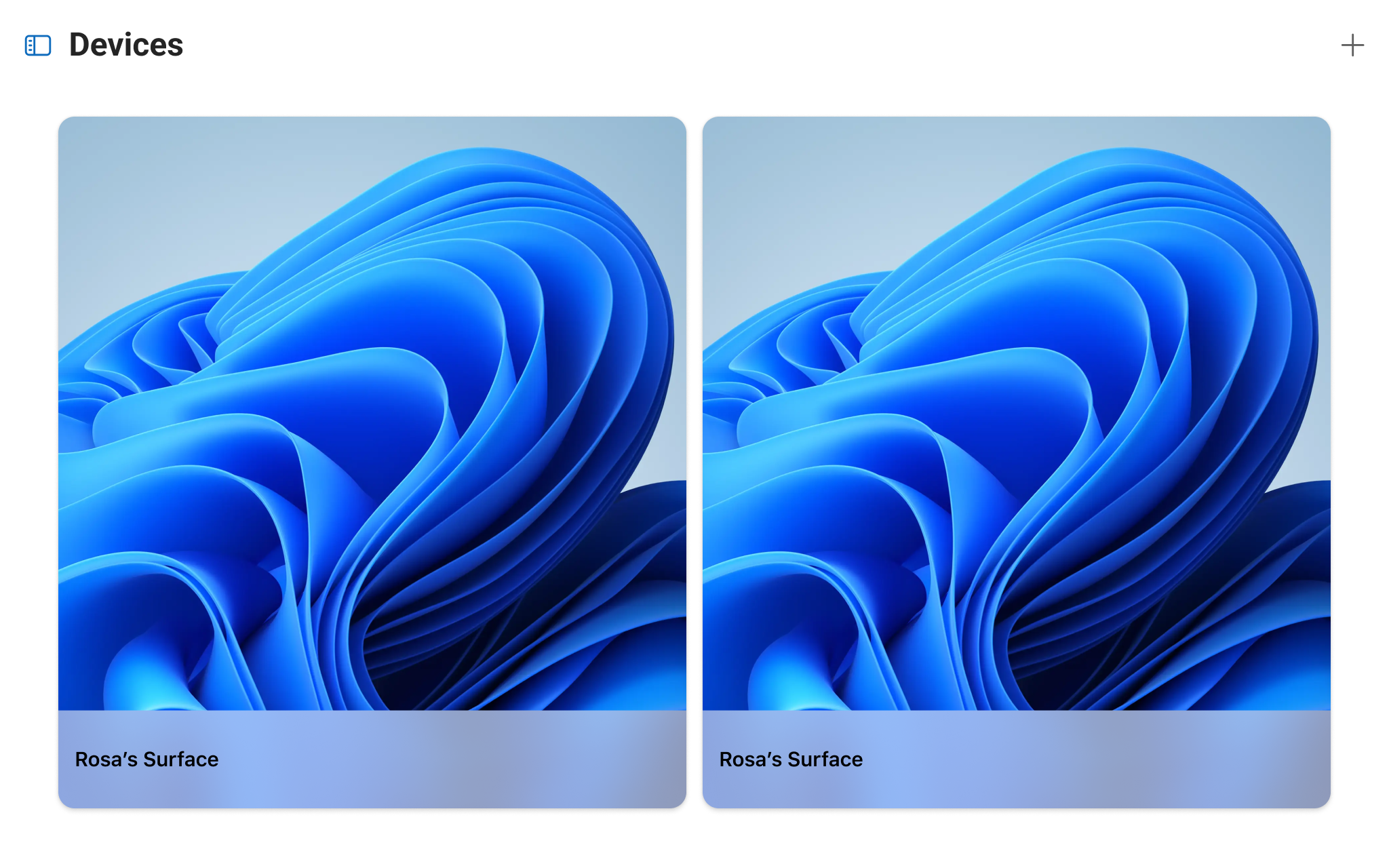
I redesigned the experience to match that. Larger device cards that actually use the screen space. Bigger tap targets for spatial input. A clear entry point for adding a local PC. I also introduced clearer language to distinguish connection types: "Nearby PC" for devices you're physically next to and pairing via QR, and "Away PC" for traditional remote desktop connections.
I built a Guest mode that scopes settings down to just what's relevant for our users, removing the enterprise controls that don't apply. This took close coordination with the Windows App team since we were extending their existing product.
The default state before signing in. Designed to orient new users and make the path to adding a PC immediately clear.
Everything above exists to get a user here. Three monitors floating in mixed reality, their own cursor, keyboard, and mouse working just like they would at their desk. When it works well, none of the design is visible. The user is just at work.
Windows in Horizon is generally available now.
Get started ↗